Set up PNetwork on Android with sing-box
August 19, 2026
sing-box is the free, open-source client we recommend on Android — an official app on the Play Store, with full support for both PNetwork protocols. The server detects sing-box automatically and serves it the right profile format. On iPhone, iPad or macOS, see the macOS & iOS sing-box guide.
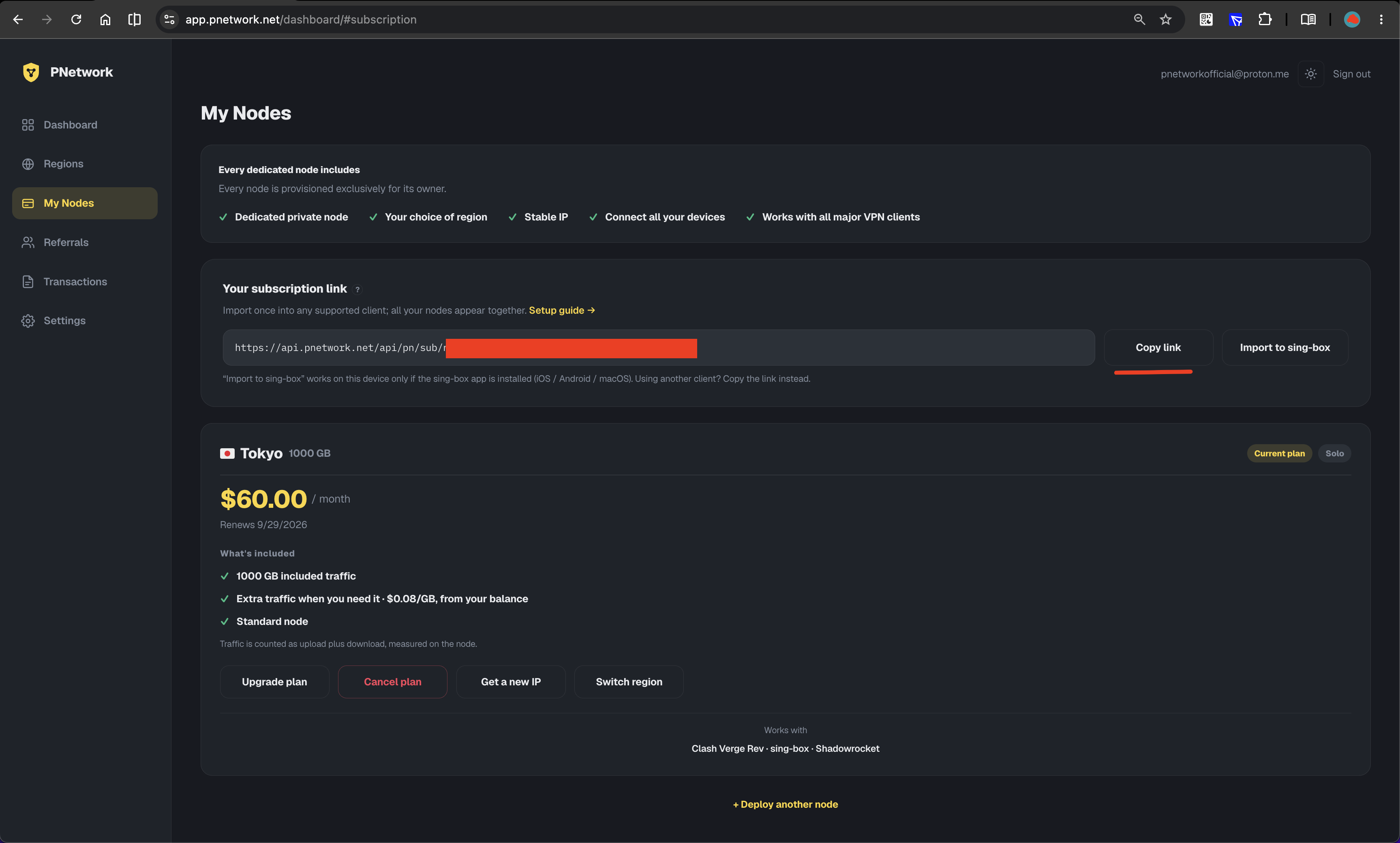
1Copy your subscription link
Open Dashboard → My Nodes and click Copy link on the “Your subscription link” card. Treat it like a password: anyone who has it can use your node.
2Install sing-box
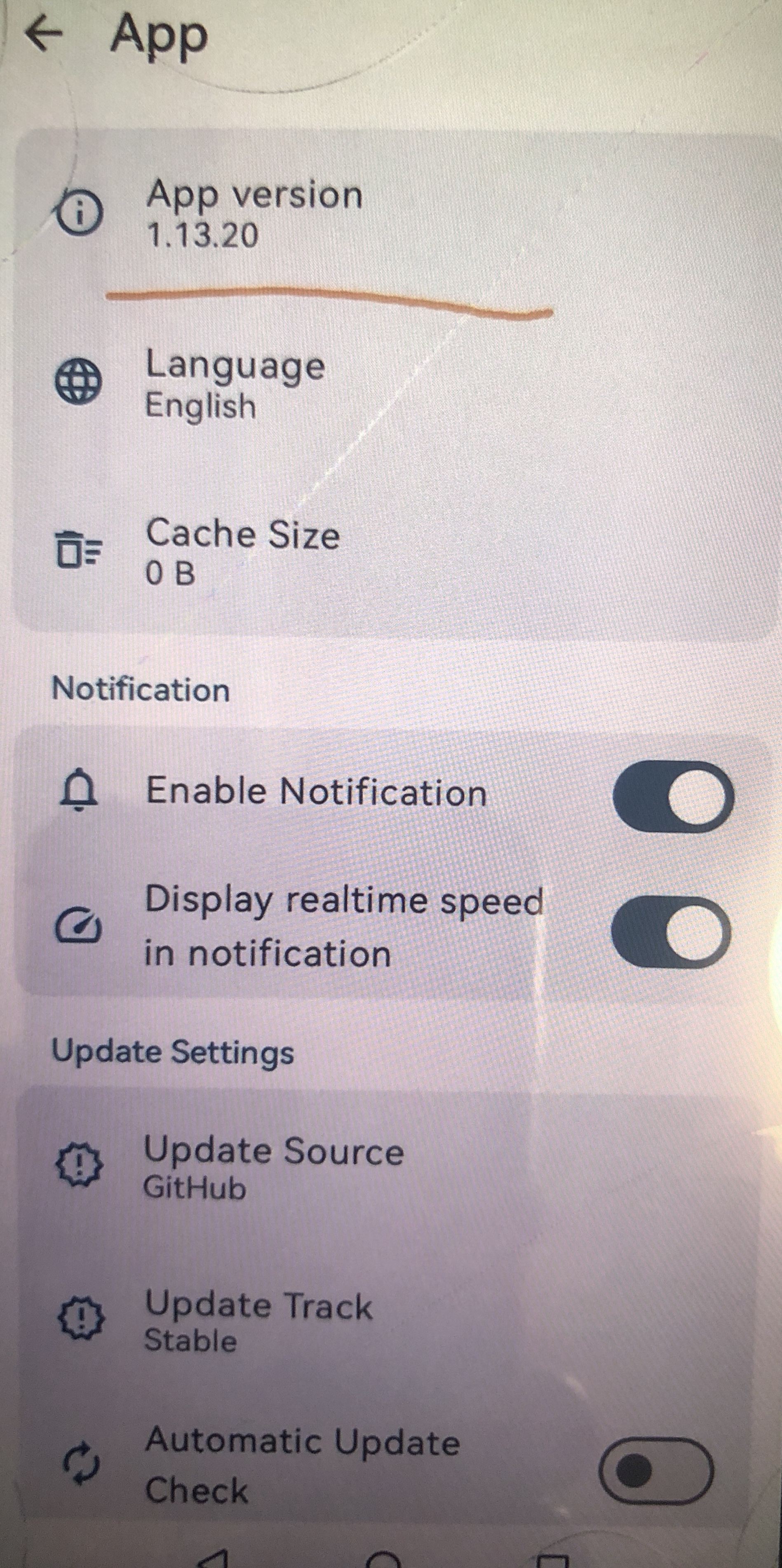
Install the official sing-box app from the Play Store (or GitHub releases). This guide was made with 1.13.20 — any recent release works.
3Add a remote profile
The one-tap way: if you opened this page on the device where sing-box is installed, go back to My Nodes and tap Import to sing-box next to your subscription link — the app opens with the profile pre-filled; just save it.
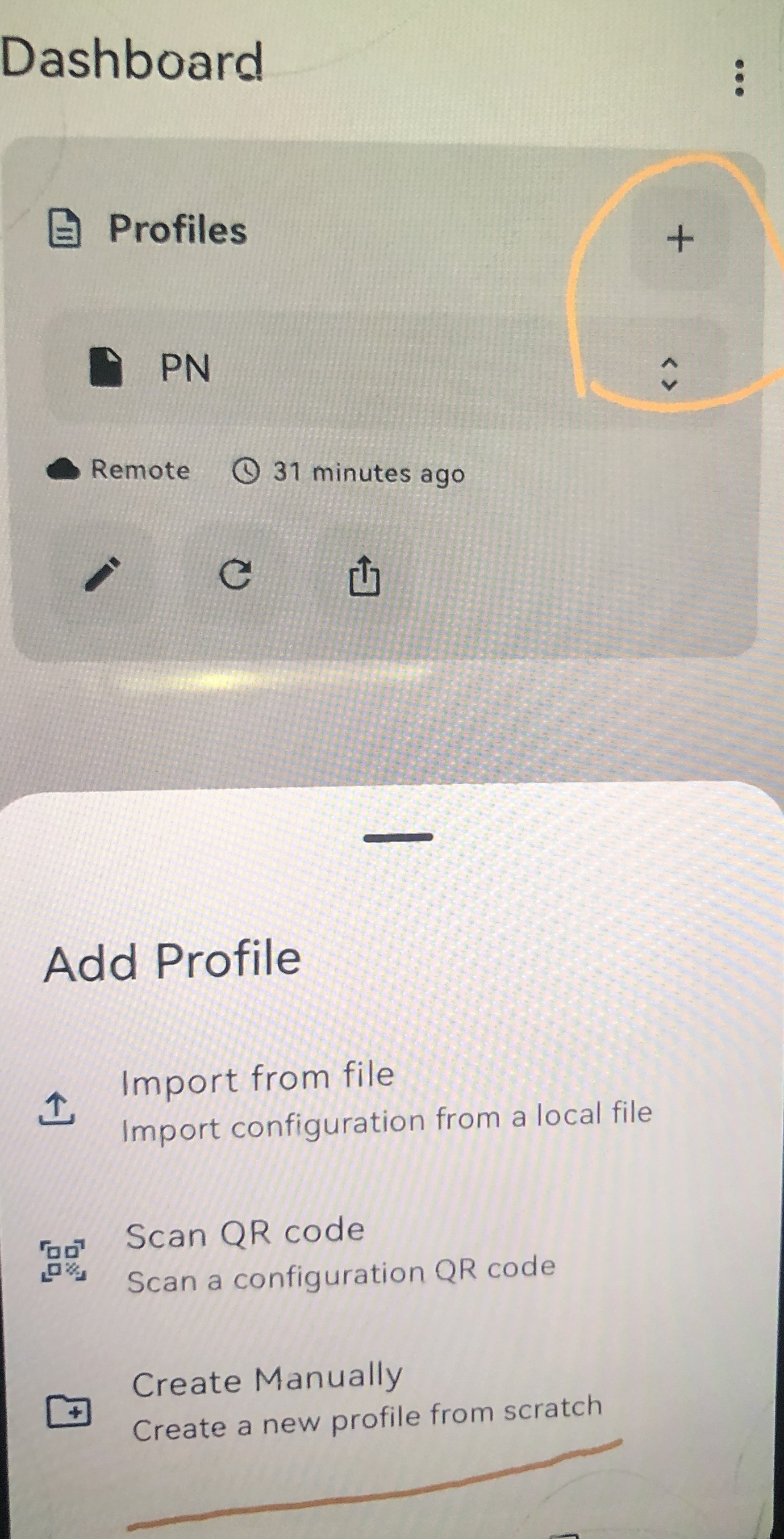
Manually (e.g. the link was copied on another device): tap + next to Profiles and choose Create Manually.
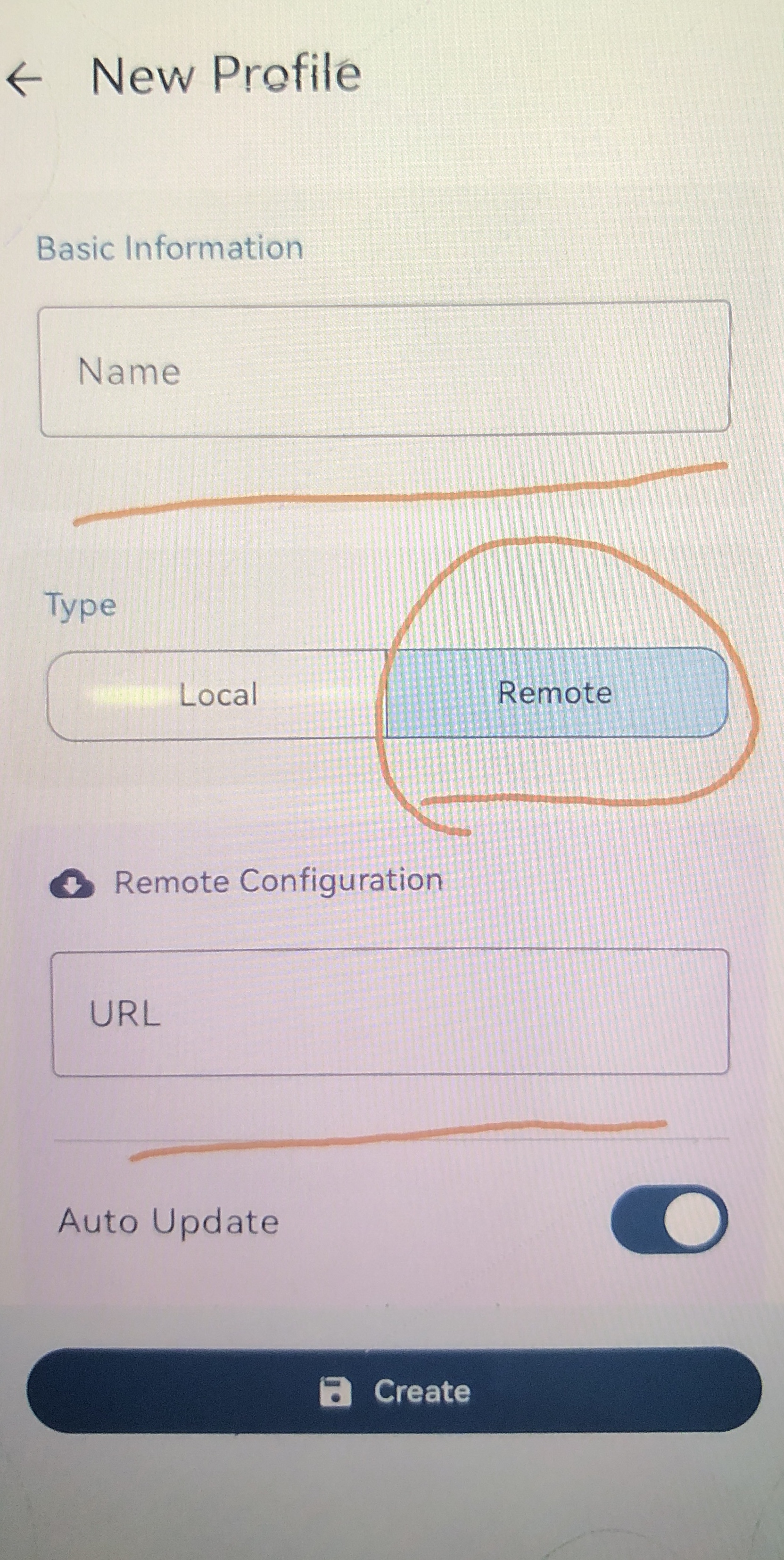
Give it a name (e.g. “PNetwork”), set the type to Remote, paste your subscription link as the URL, leave Auto Update on, and tap Create. If you ever import the same link in a desktop tool and get YAML instead of JSON, append ?format=singbox to force the sing-box format — inside the app this is never needed.
4Connect
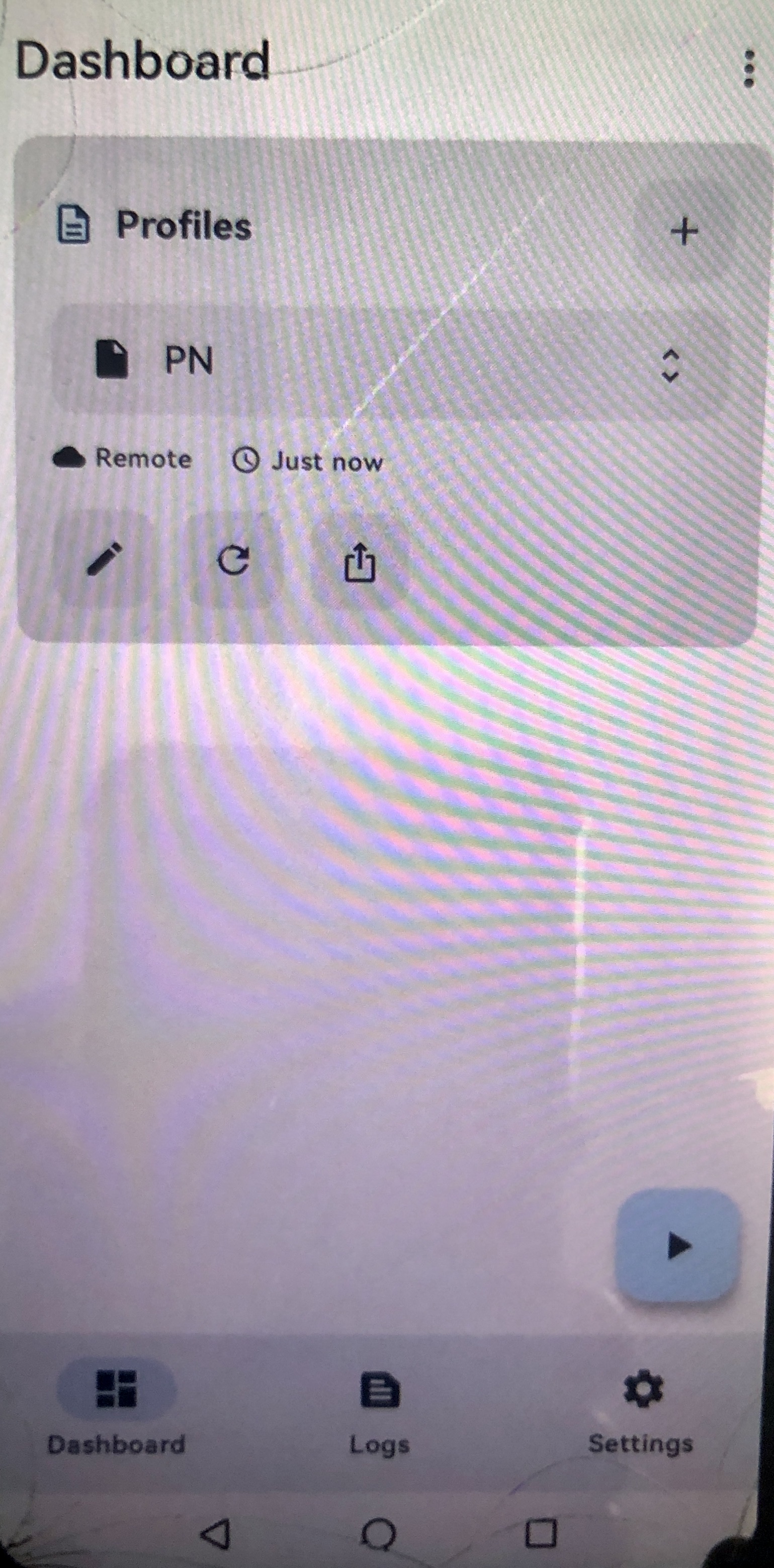
Back on the Dashboard tab, the profile appears under Profiles — tap the start button to connect. The OS asks to add a VPN configuration the first time — allow it. Auto-update is on by default, so IP changes arrive without re-importing.
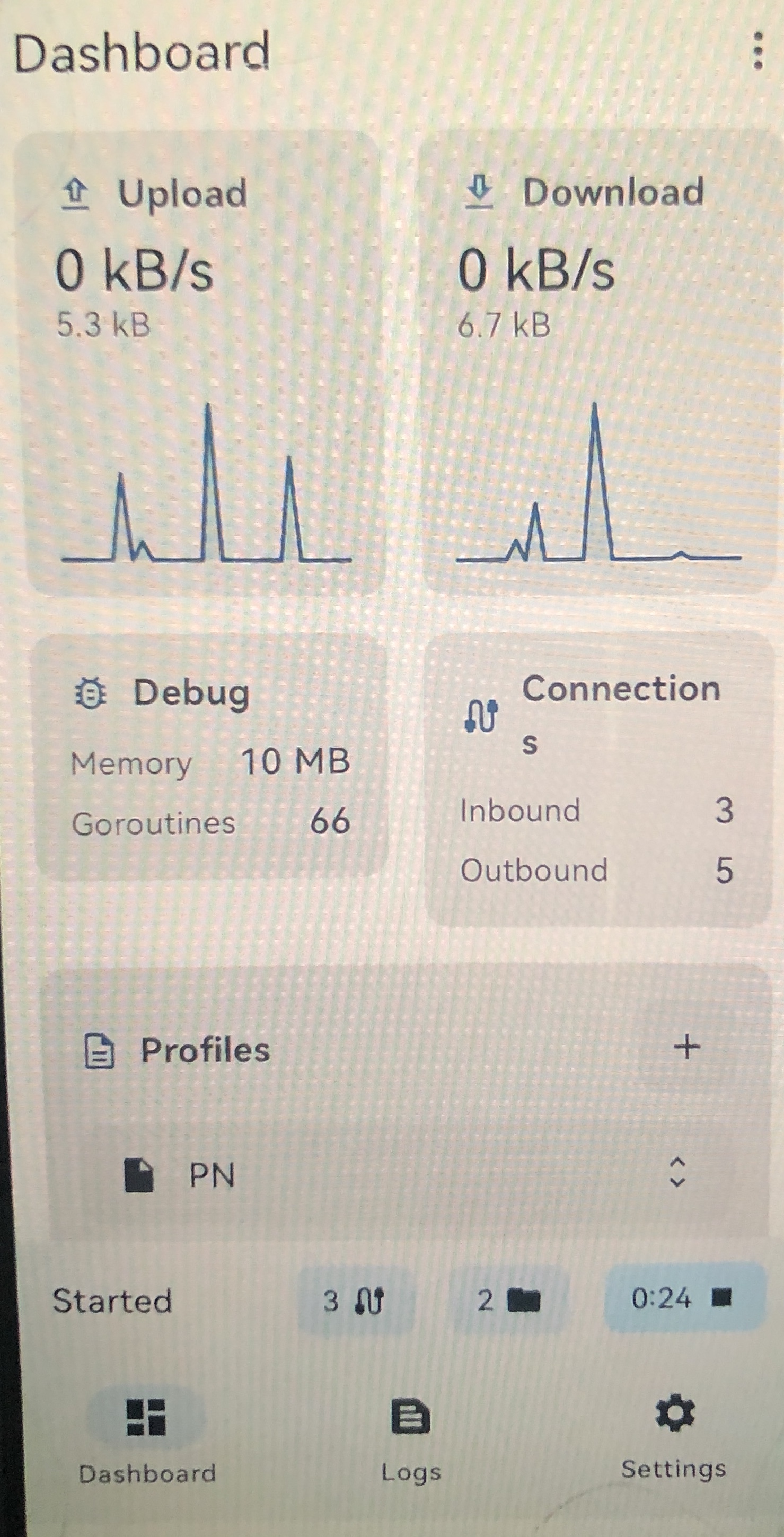
Once connected, the Dashboard shows live upload/download and the session timer.
Trouble connecting? See the shared troubleshooting checklist or email [email protected].