Set up PNetwork on macOS, iPhone & iPad with sing-box
August 31, 2026
sing-box is free and open-source, with official graphical apps for Apple platforms (iPhone, iPad and macOS). This guide walks through the desktop app on macOS — including the one-time extension setup — then the same flow on iPhone/iPad. On Android, see the Android sing-box guide; on Windows or Linux, the Clash Verge Rev guide has you covered.
1Copy your subscription link
Open Dashboard → My Nodes and click Copy linkon the “Your subscription link” card. One link covers every node you own and keeps itself up to date — including after an IP change. Treat it like a password: anyone who has it can use your node.
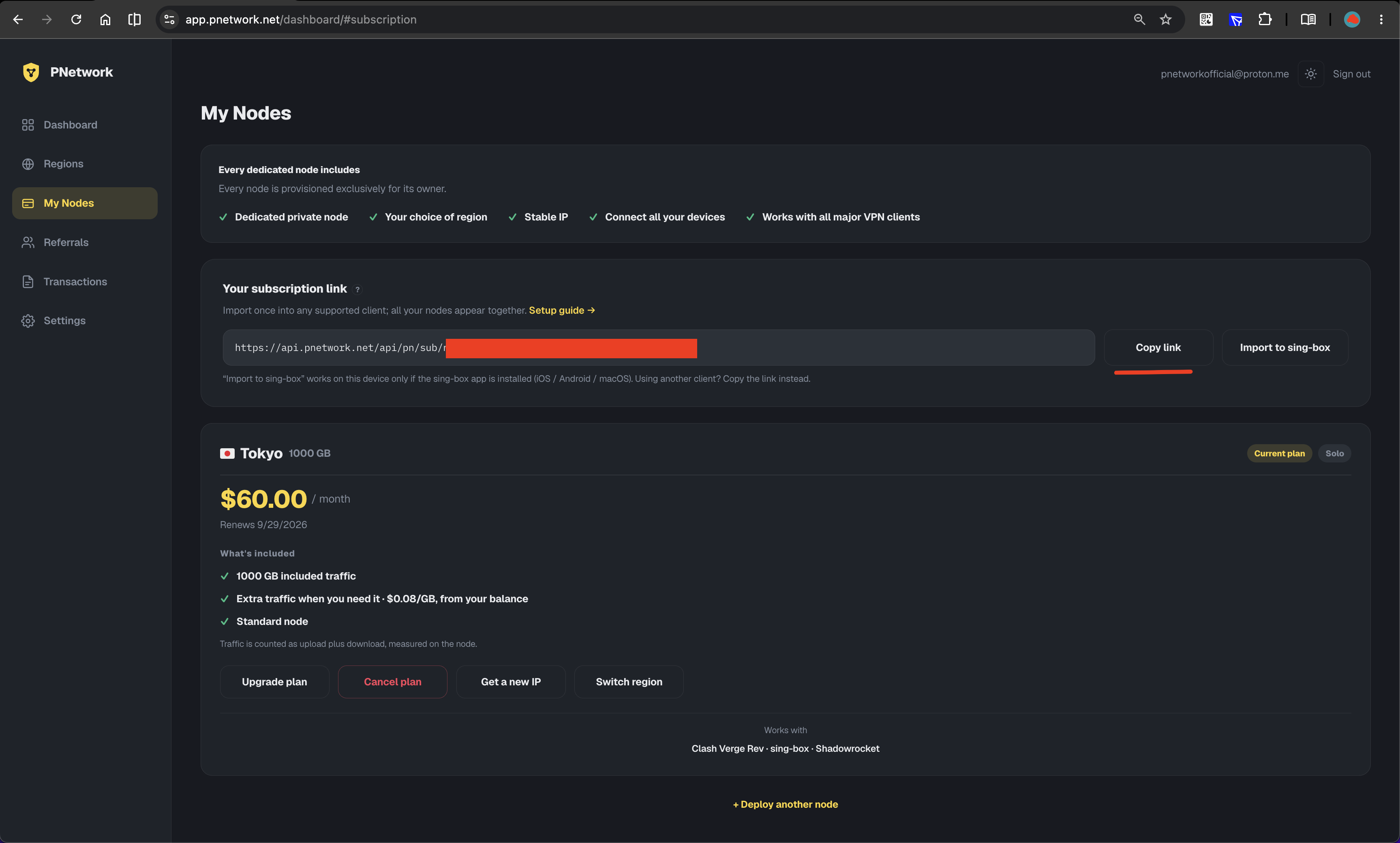
2Install sing-box
On macOS and iOS, install the official sing-box app from the App Store (the macOS app is also available as a standalone download on the GitHub releases page). This guide was made with 1.14.0 on both macOS and iOS — you can check yours under Settings → Core.
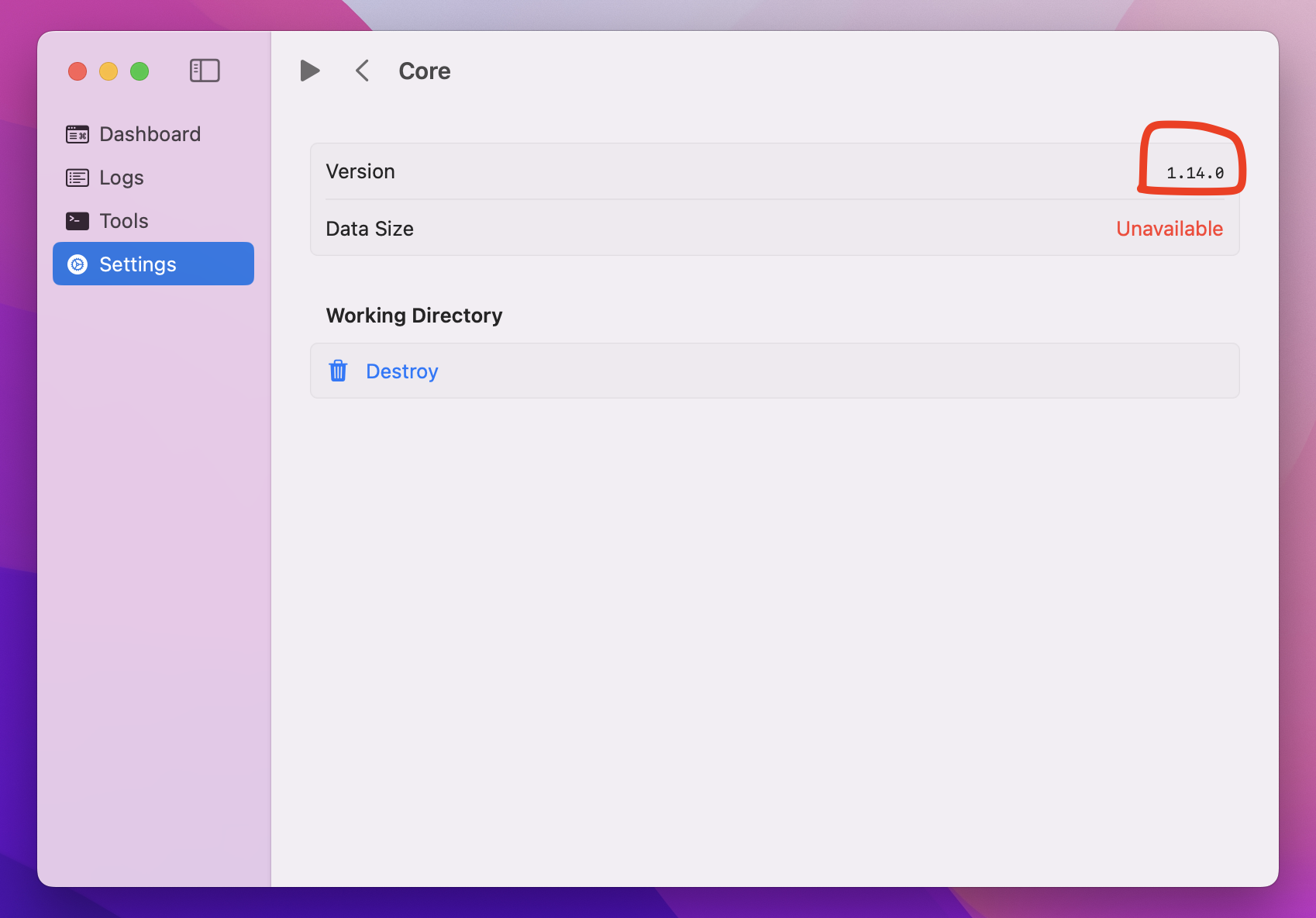
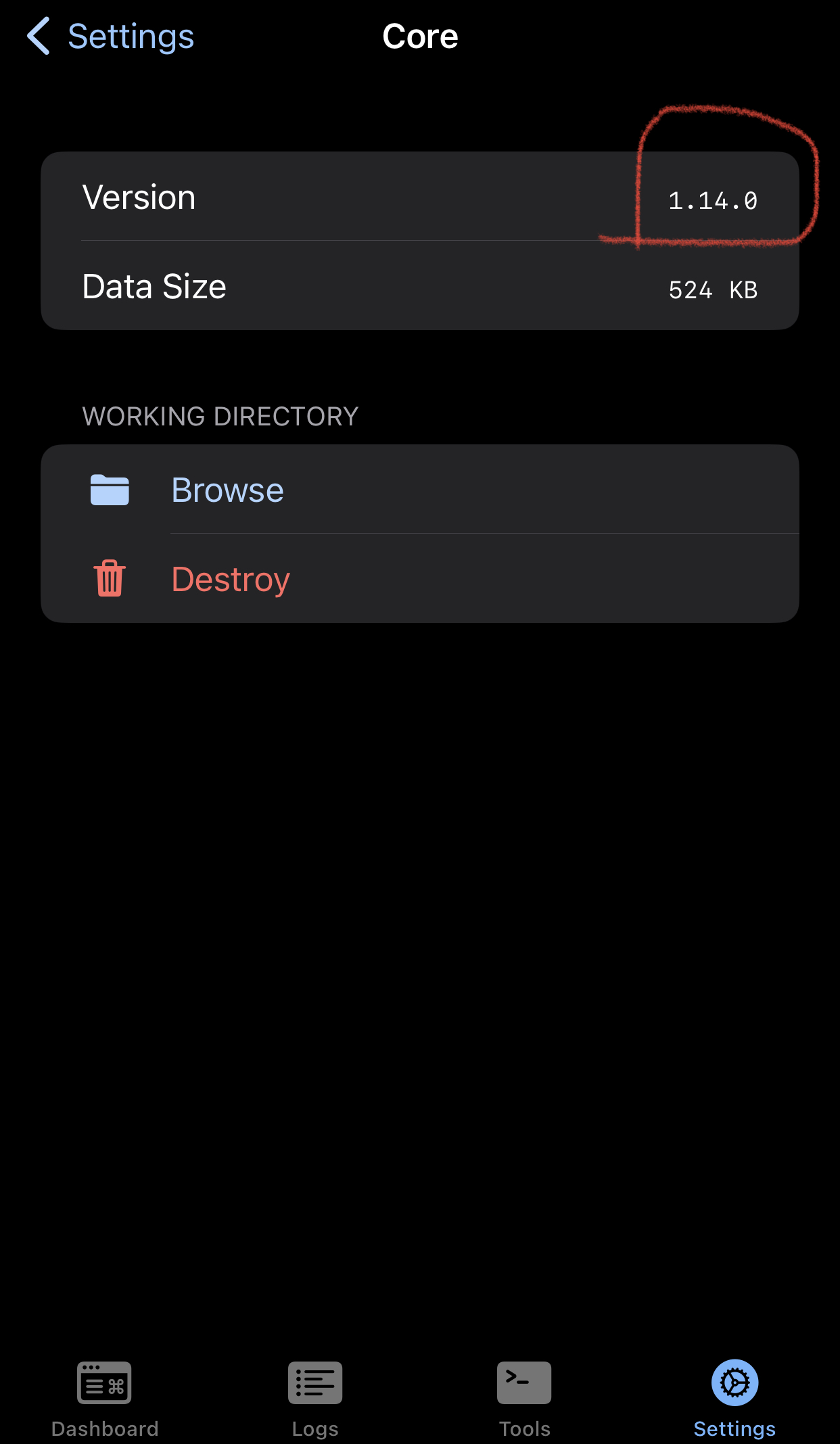
3macOS: allow the system extension (first launch only)
On first launch the macOS app asks for a one-time system extension. On the app’s Dashboard, click Install System Extension — macOS opens System Settings; allow the SFMExtension there and enter your system password when prompted. This is standard for any VPN app on macOS.
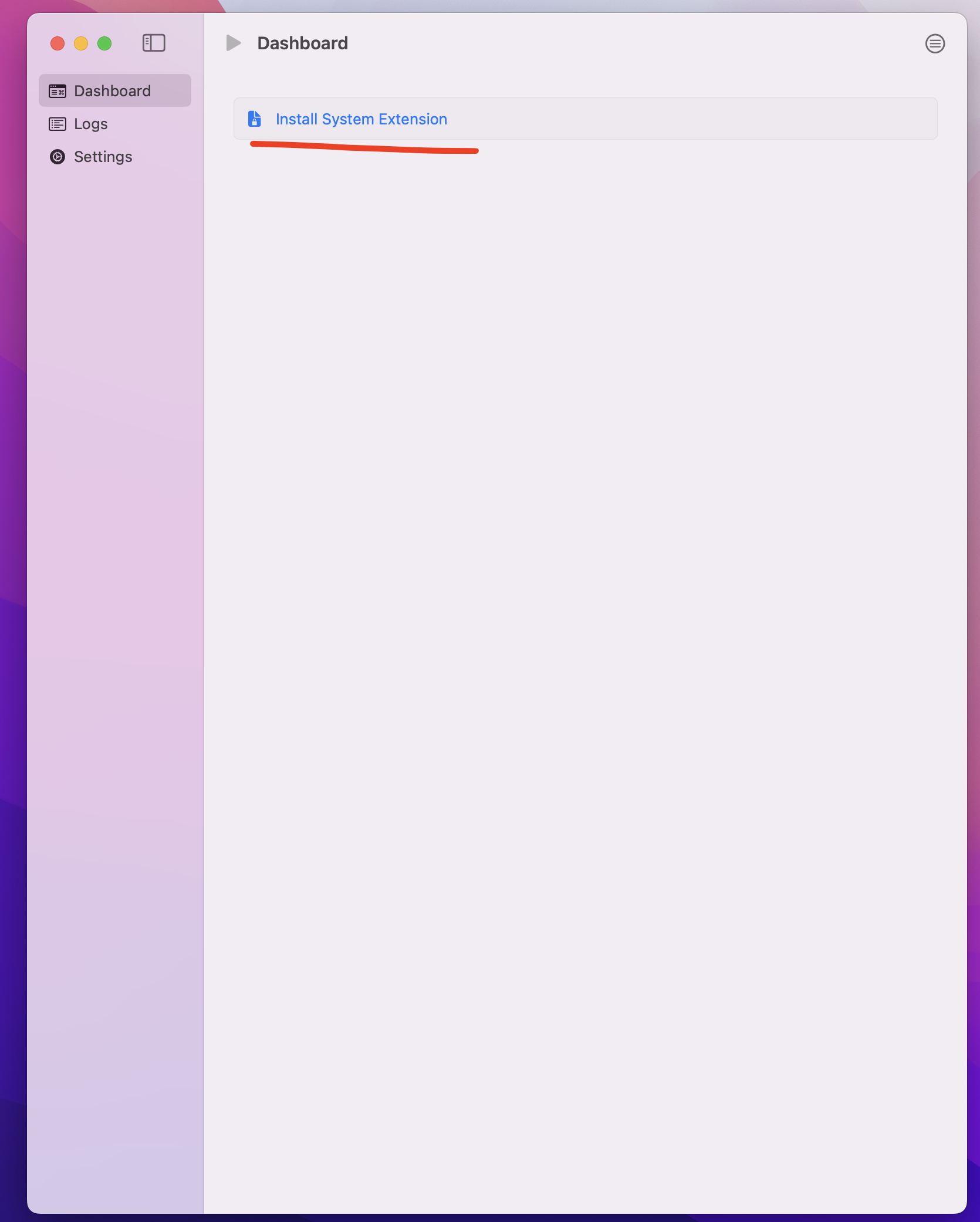
4macOS: install the network extension
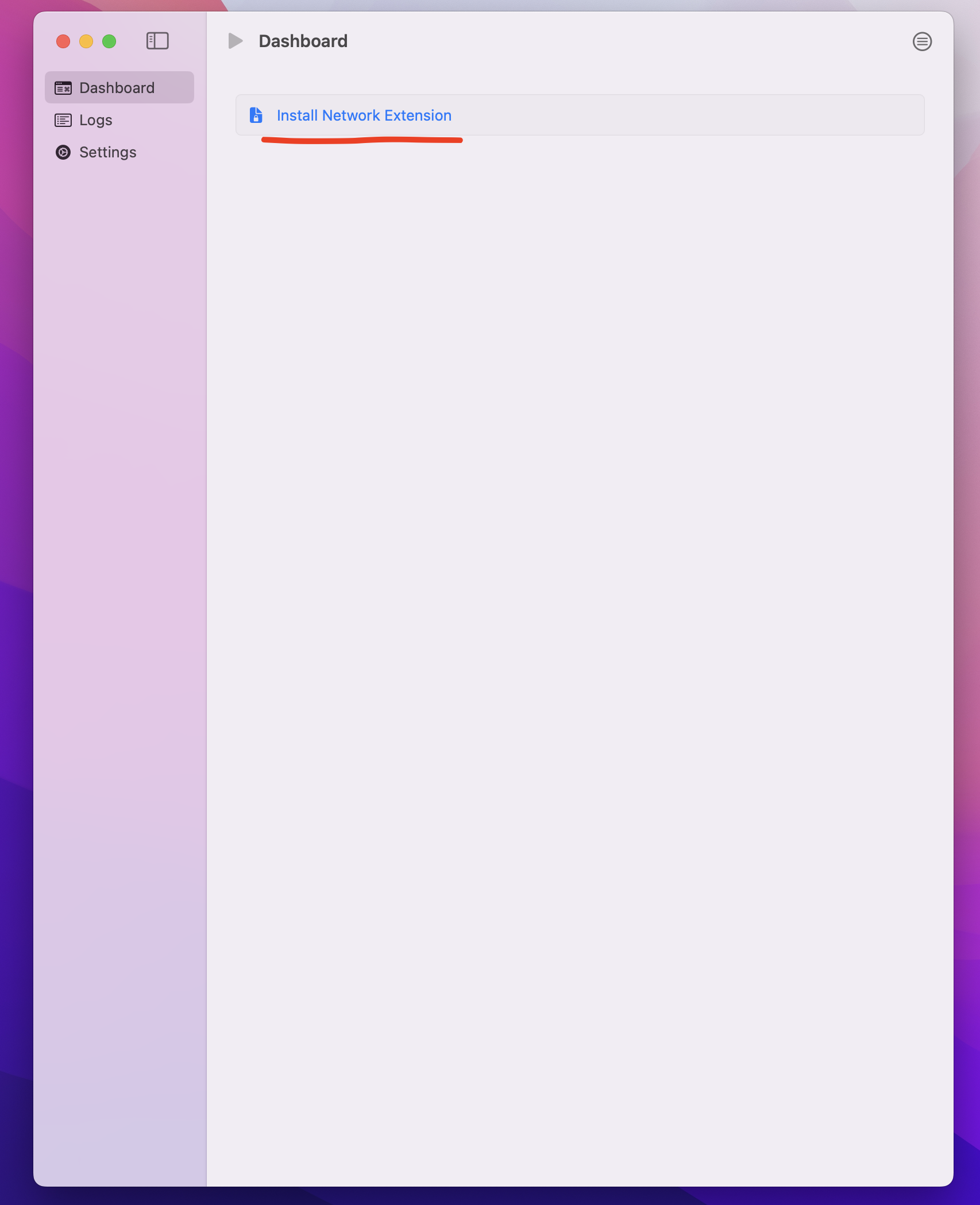
Back on the Dashboard, click Install Network Extension and choose Allow in the system dialog.
5macOS: add your profile
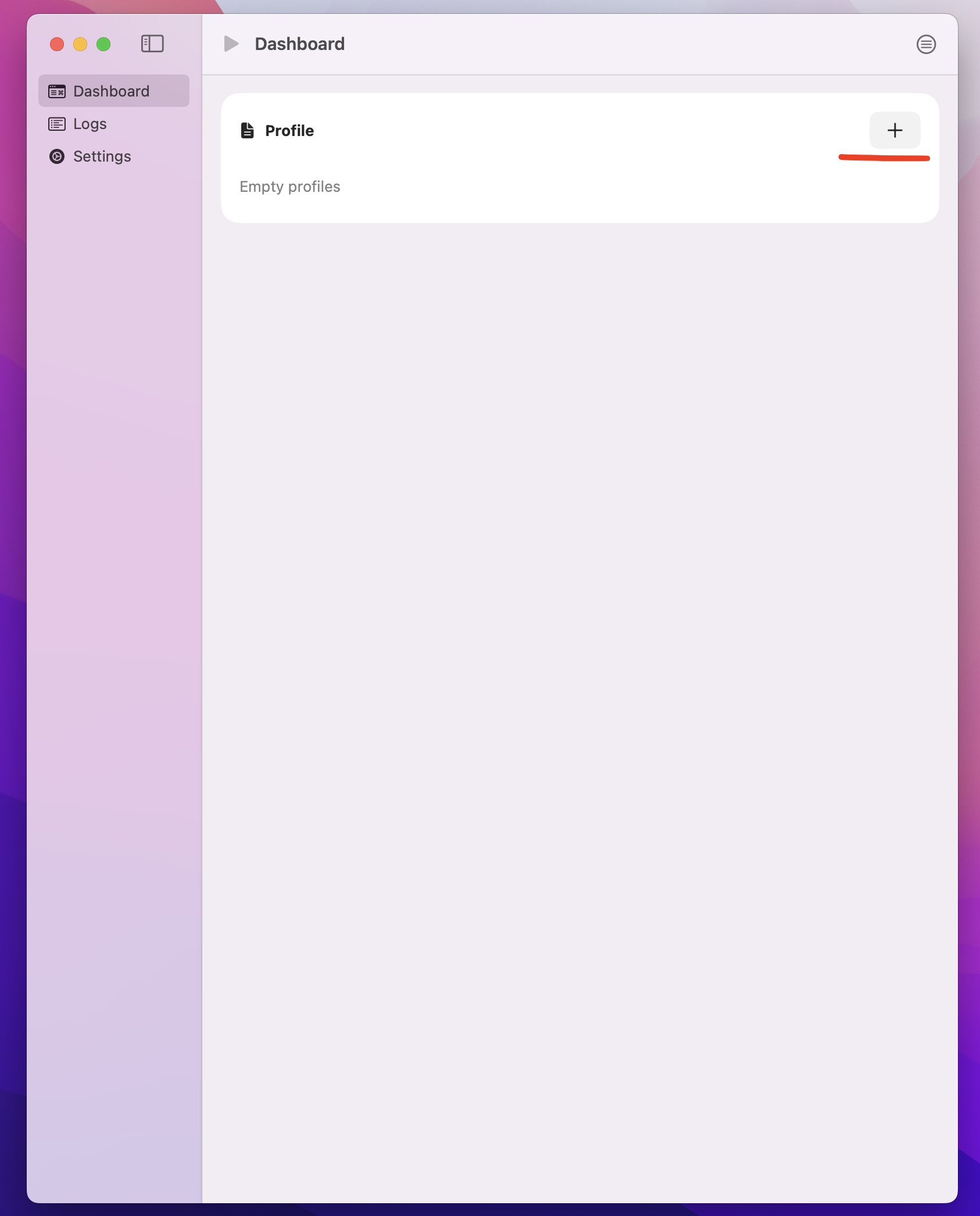
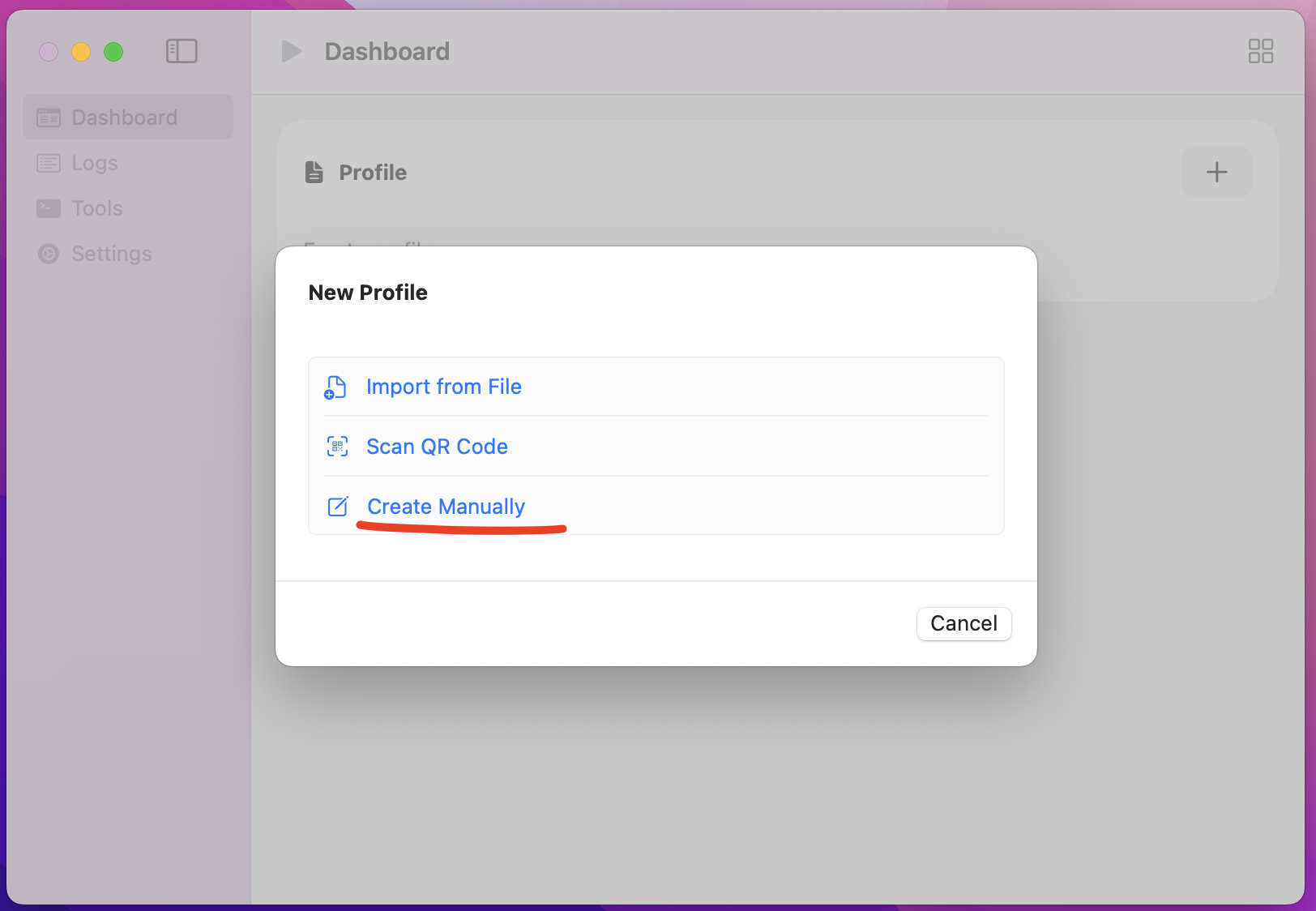
On the Profile card, click +, then choose Create Manually.
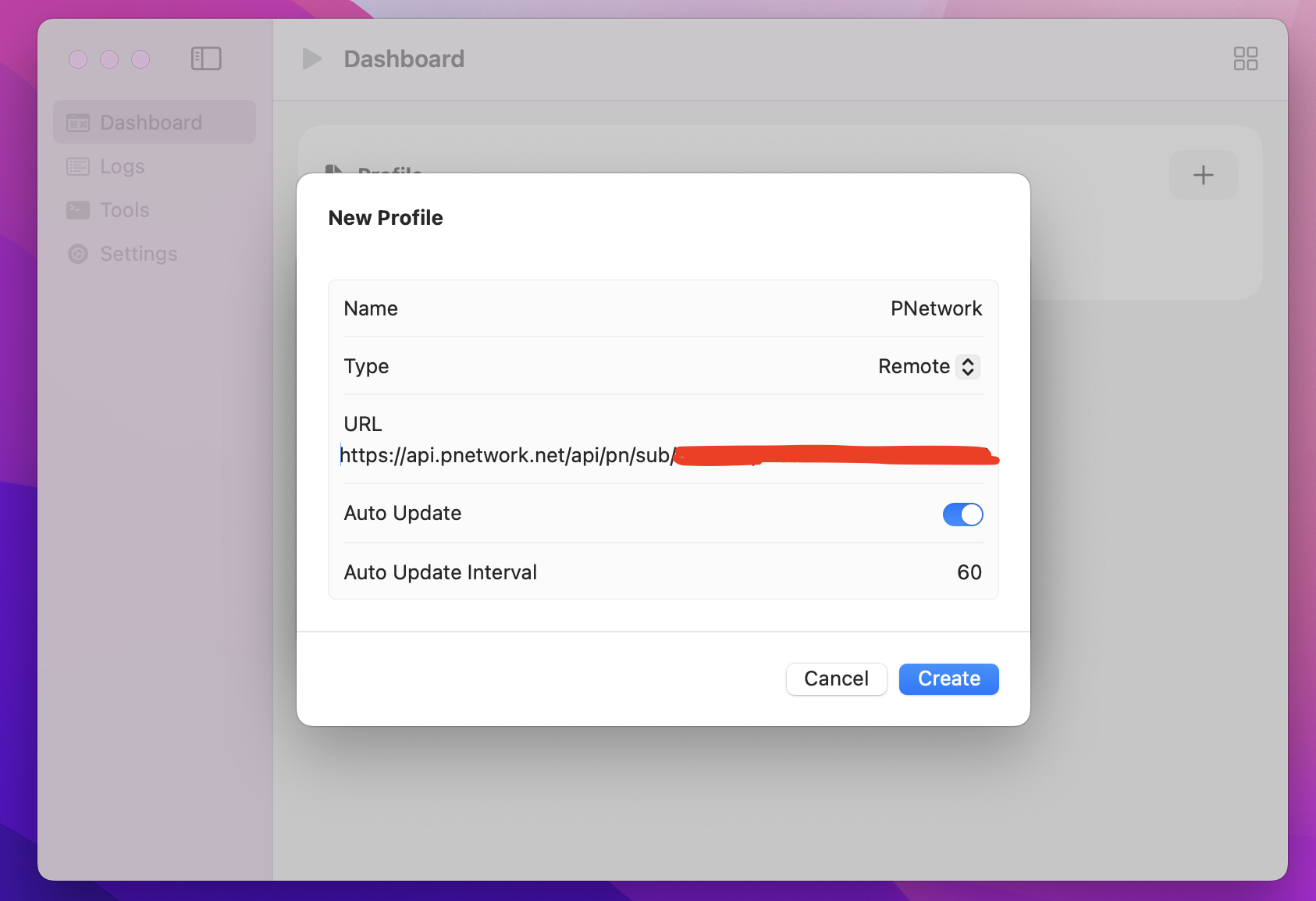
Give it a name (e.g. “PNetwork”), set the type to Remote, paste your subscription link as the URL, leave Auto Update on, and click Create.
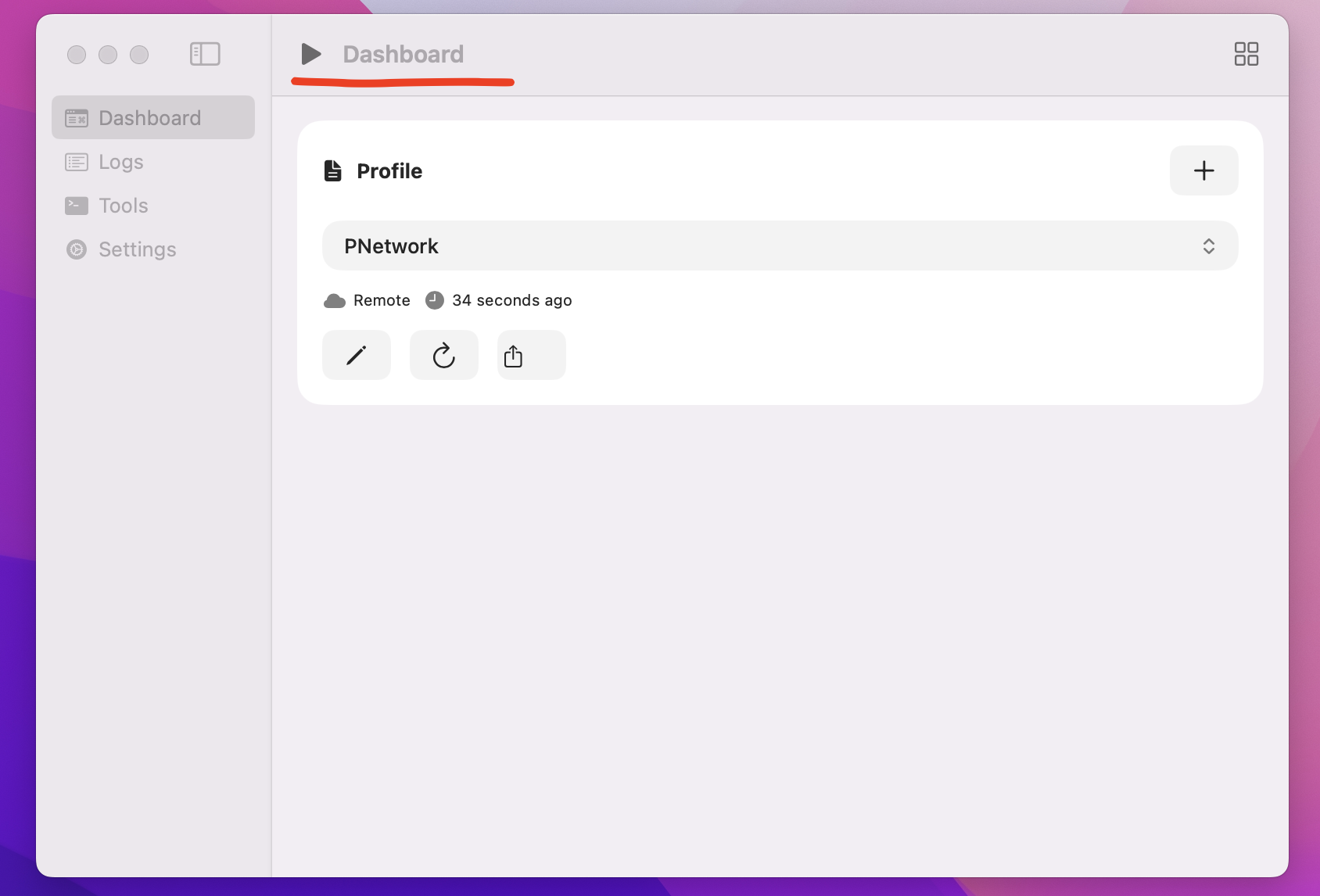
6macOS: connect
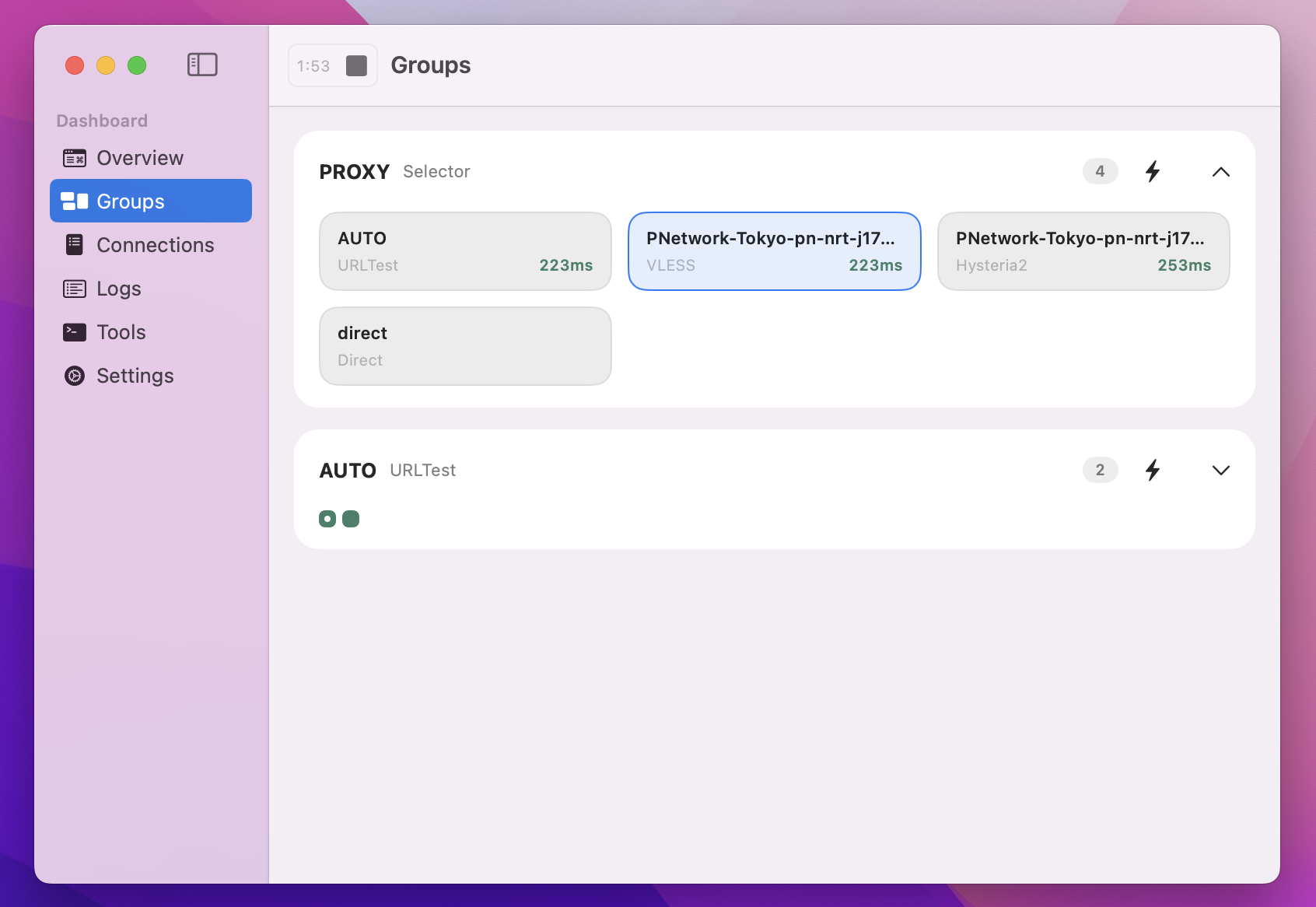
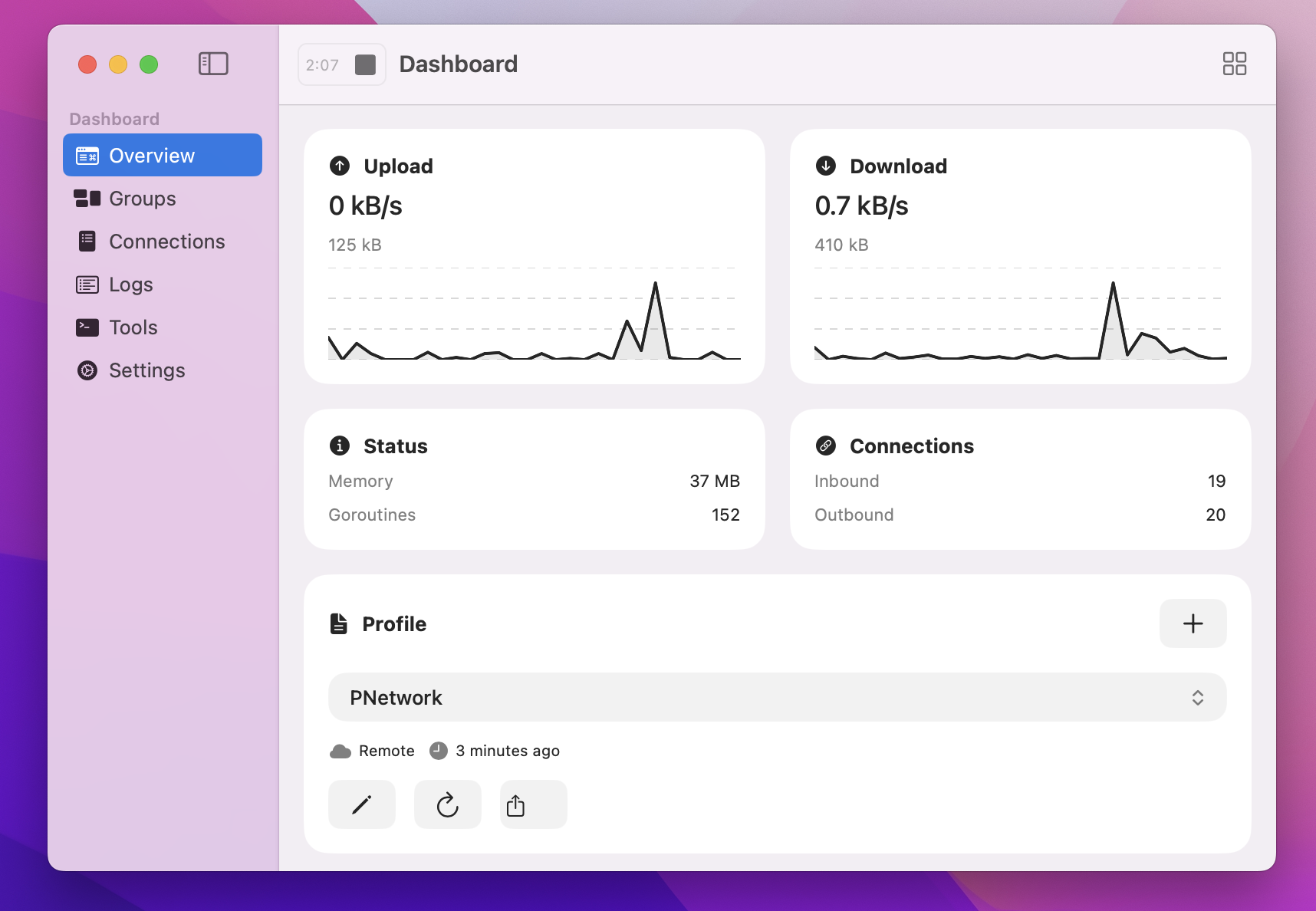
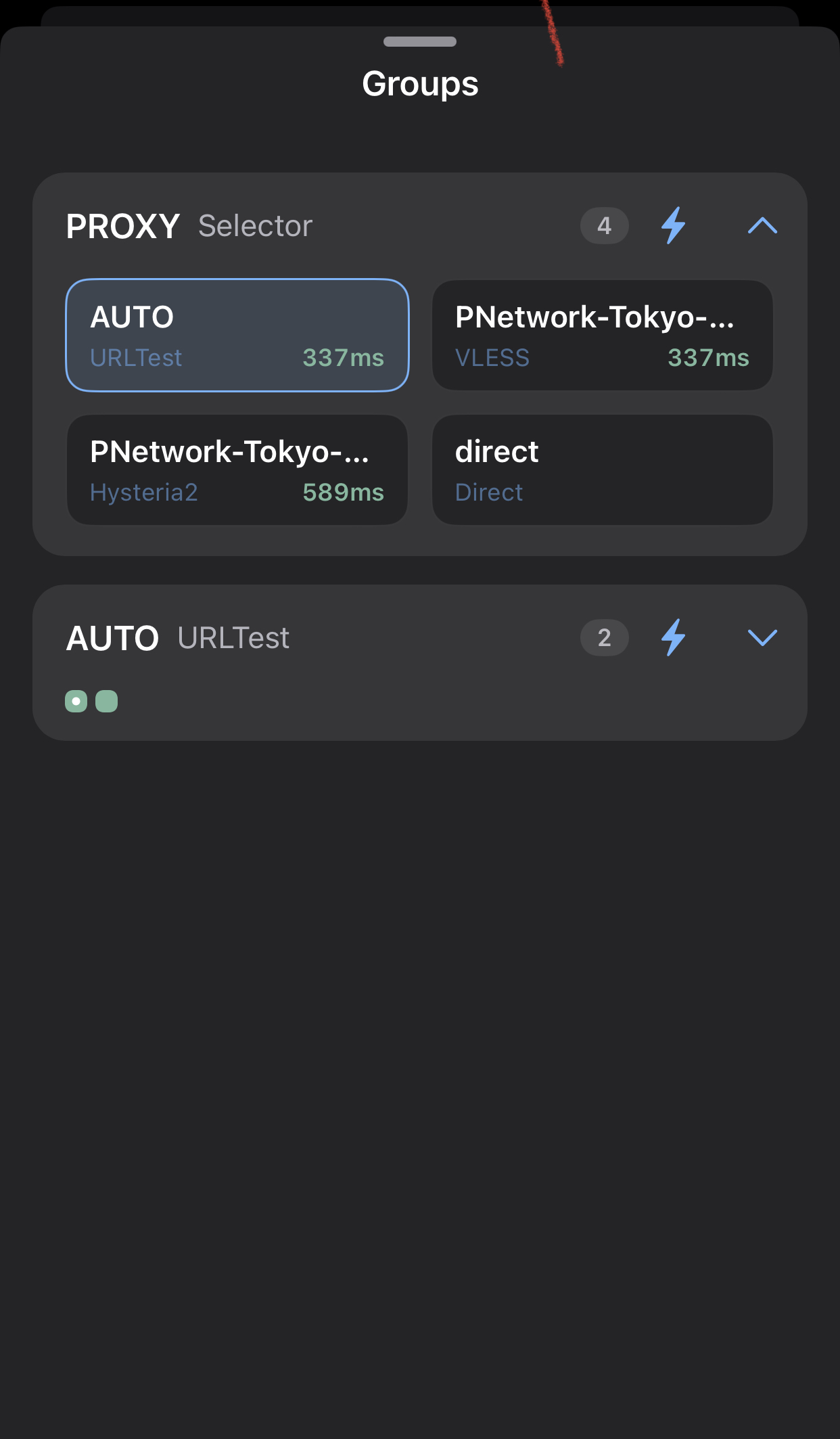
Back on the Dashboard, hit the start button at the top. Once connected, Overview shows live traffic and the session timer, and Groups lists your node with per-protocol latency — AUTO picks the faster protocol for you.
7iPhone & iPad: install the network extension
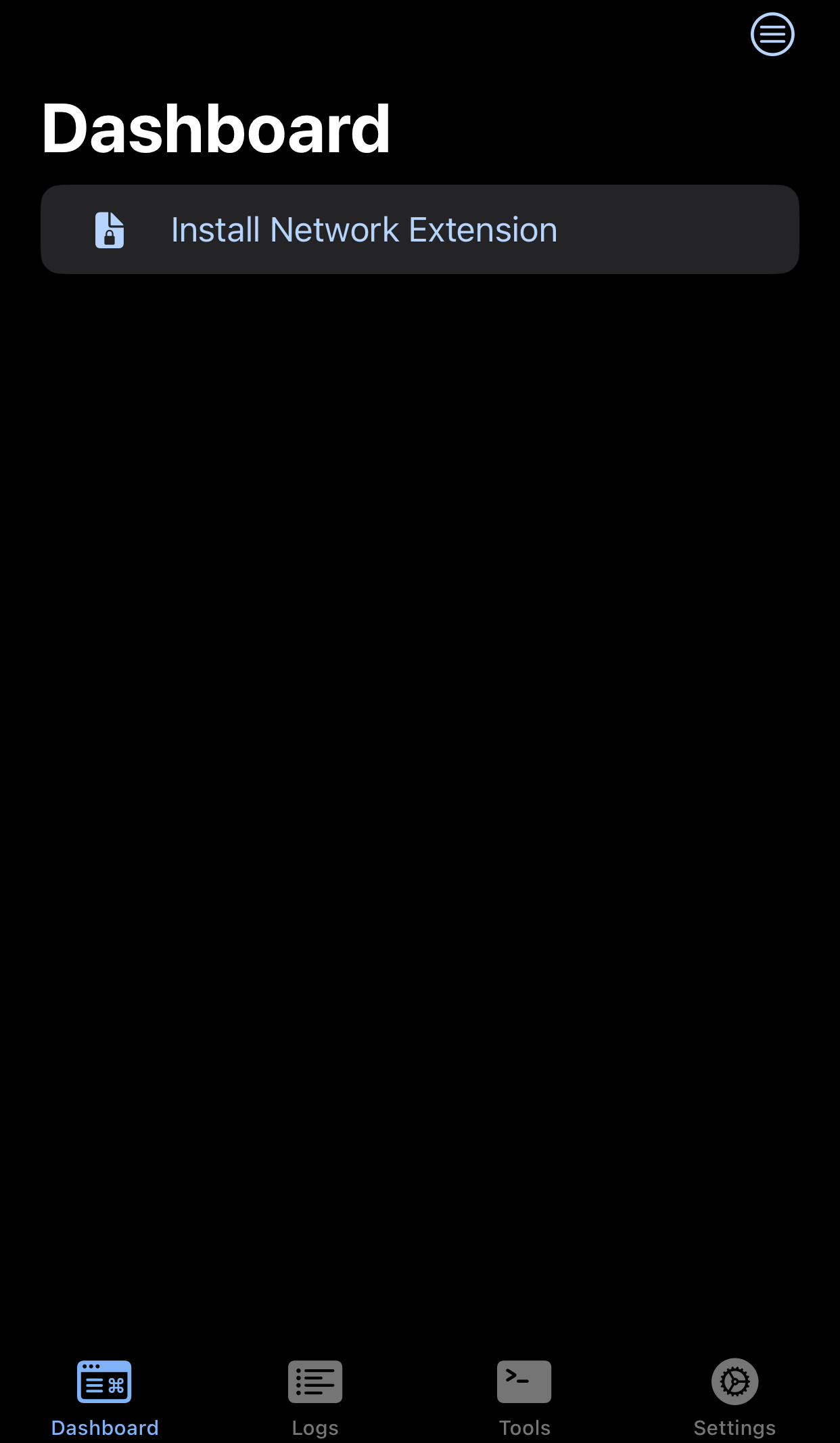
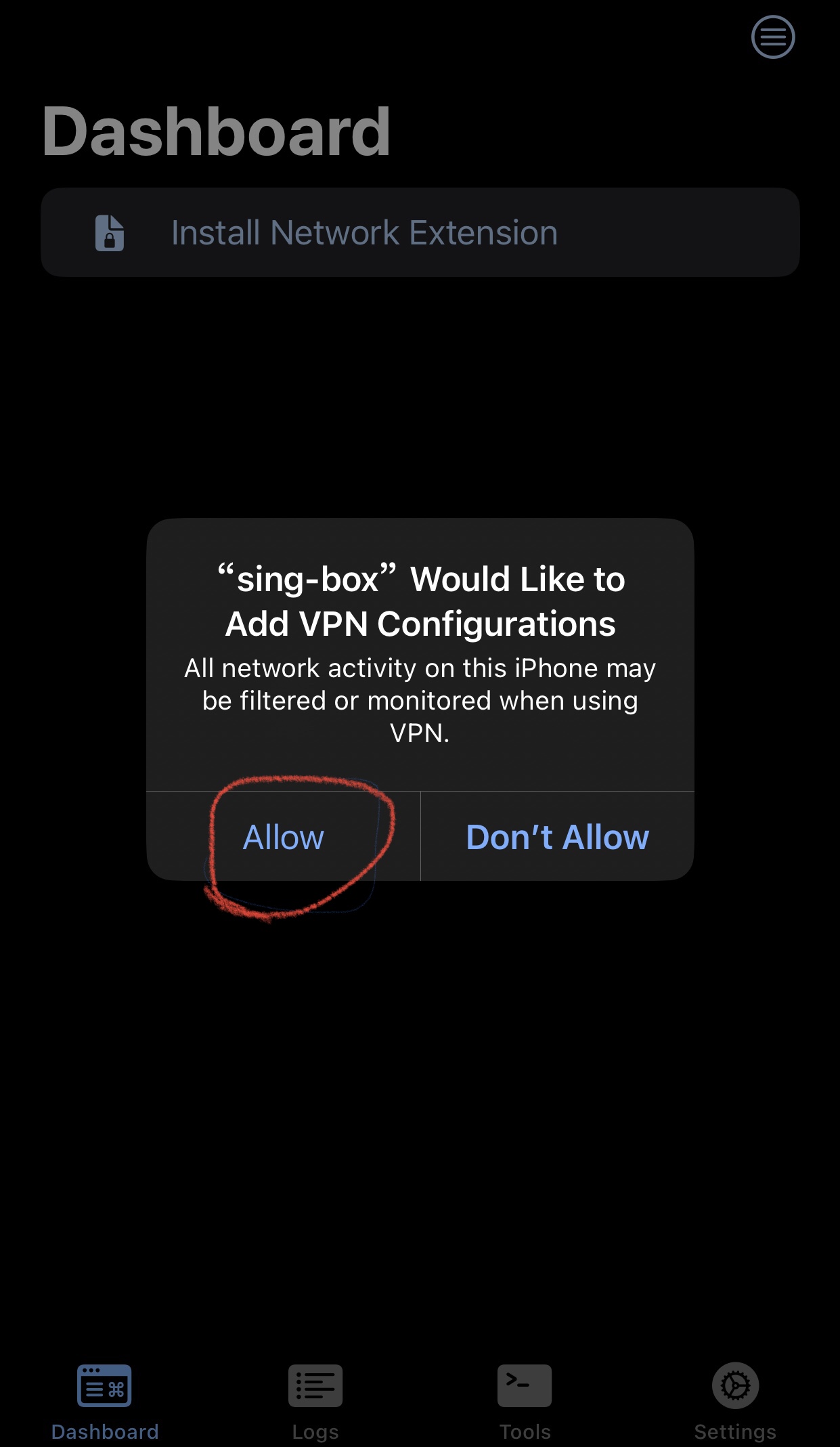
On iOS there’s just one prompt: tap Install Network Extension on the Dashboard, then Allow when iOS asks to add a VPN configuration.
8iPhone & iPad: add your profile
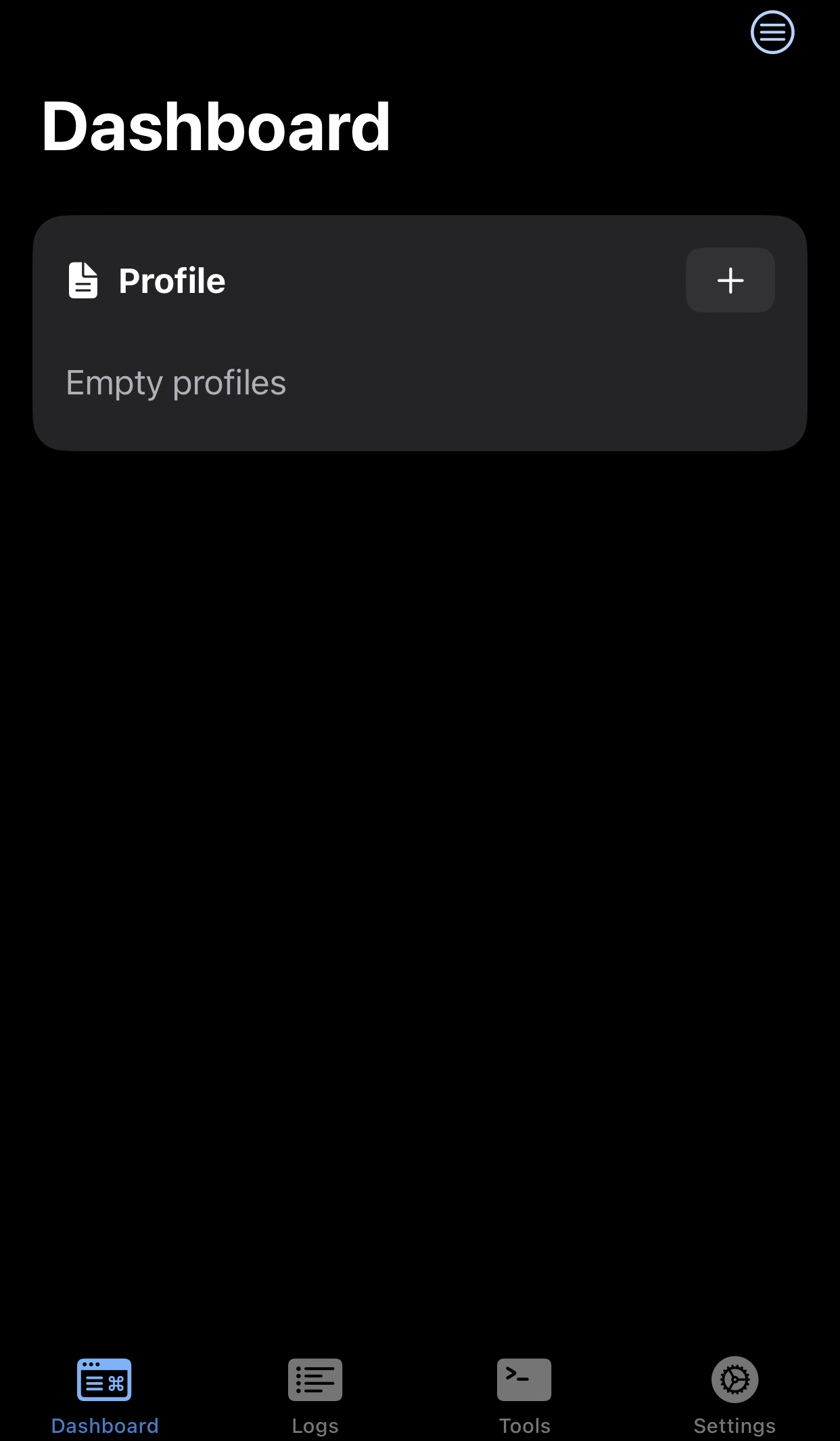
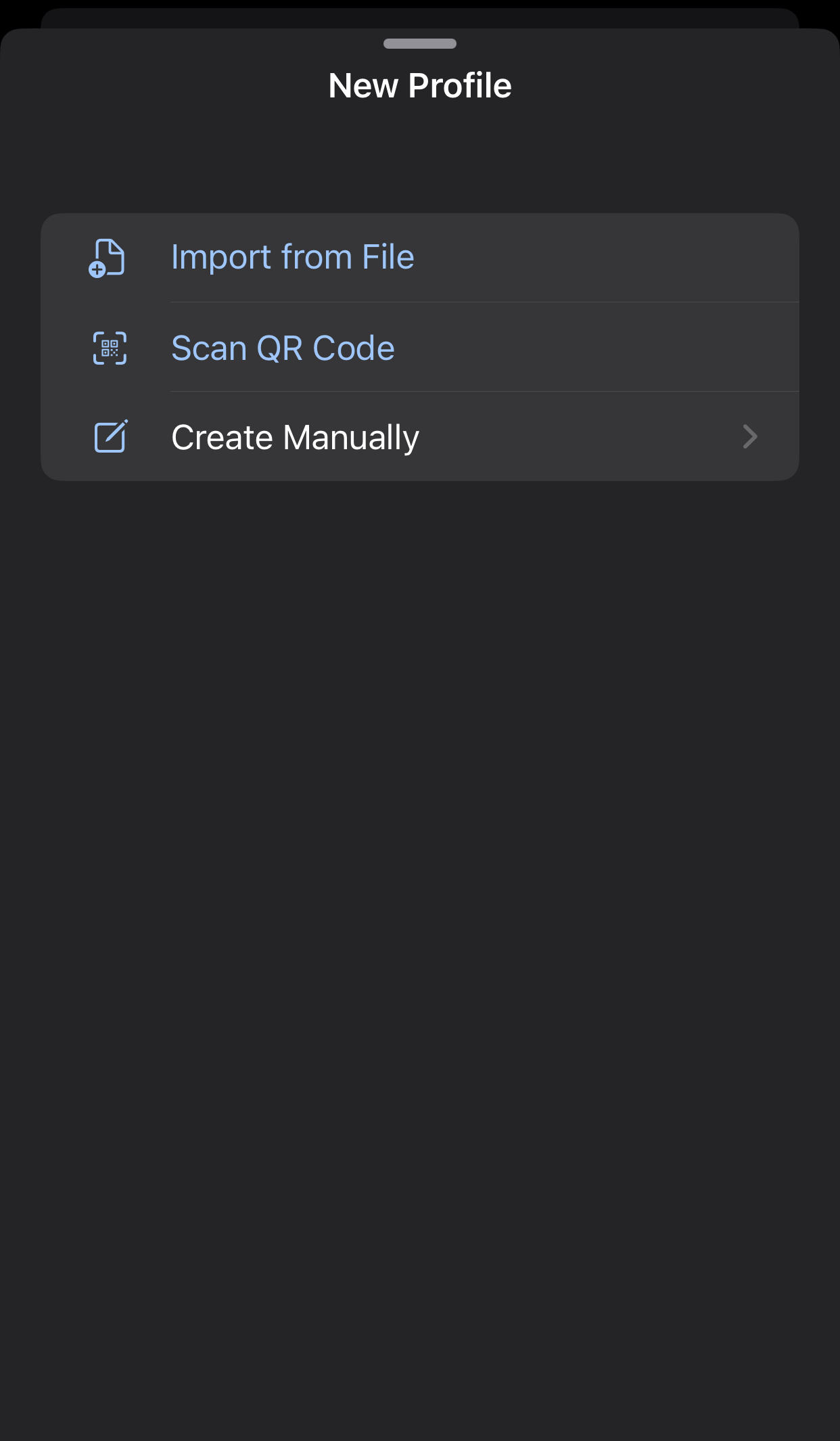
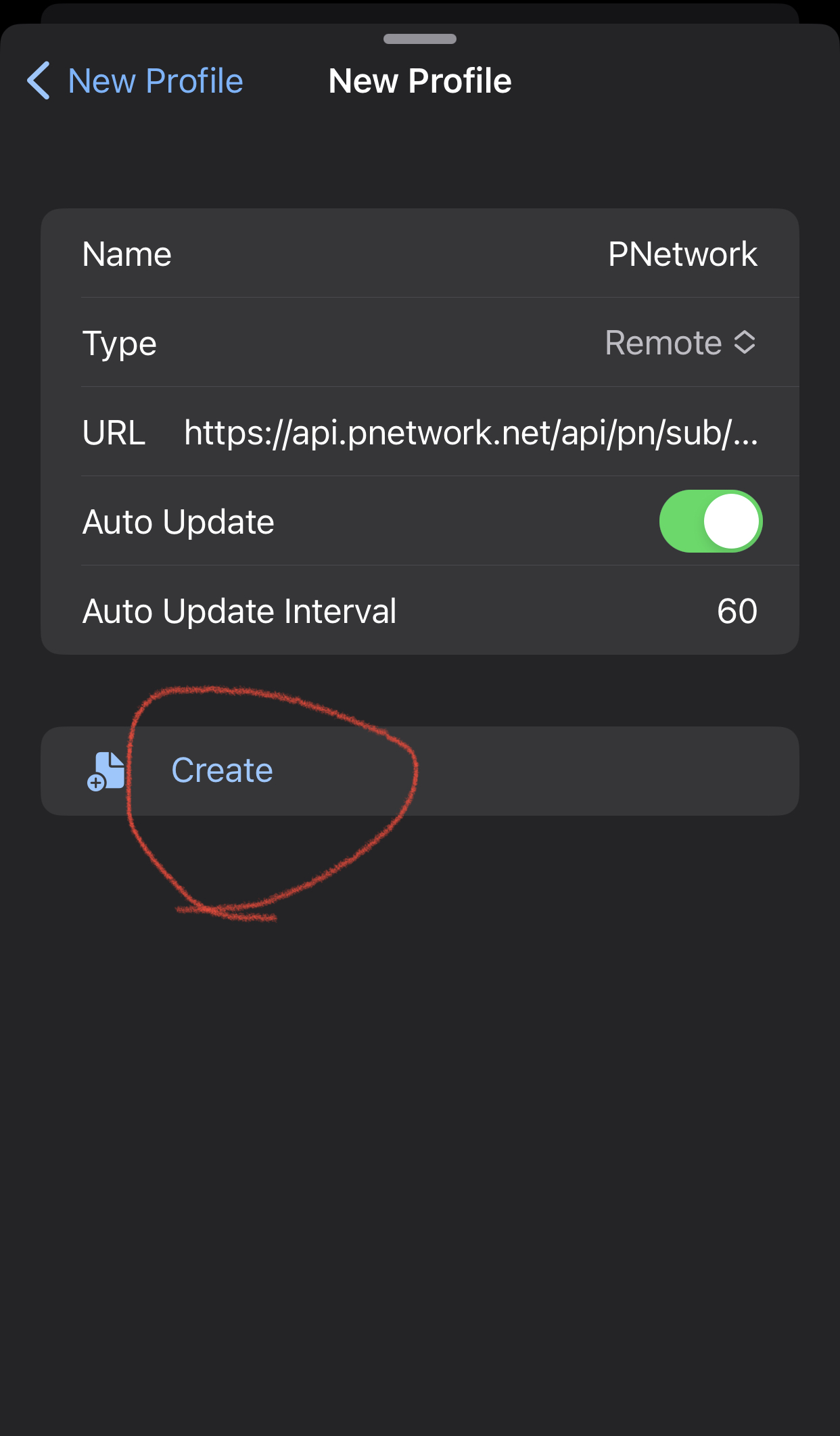
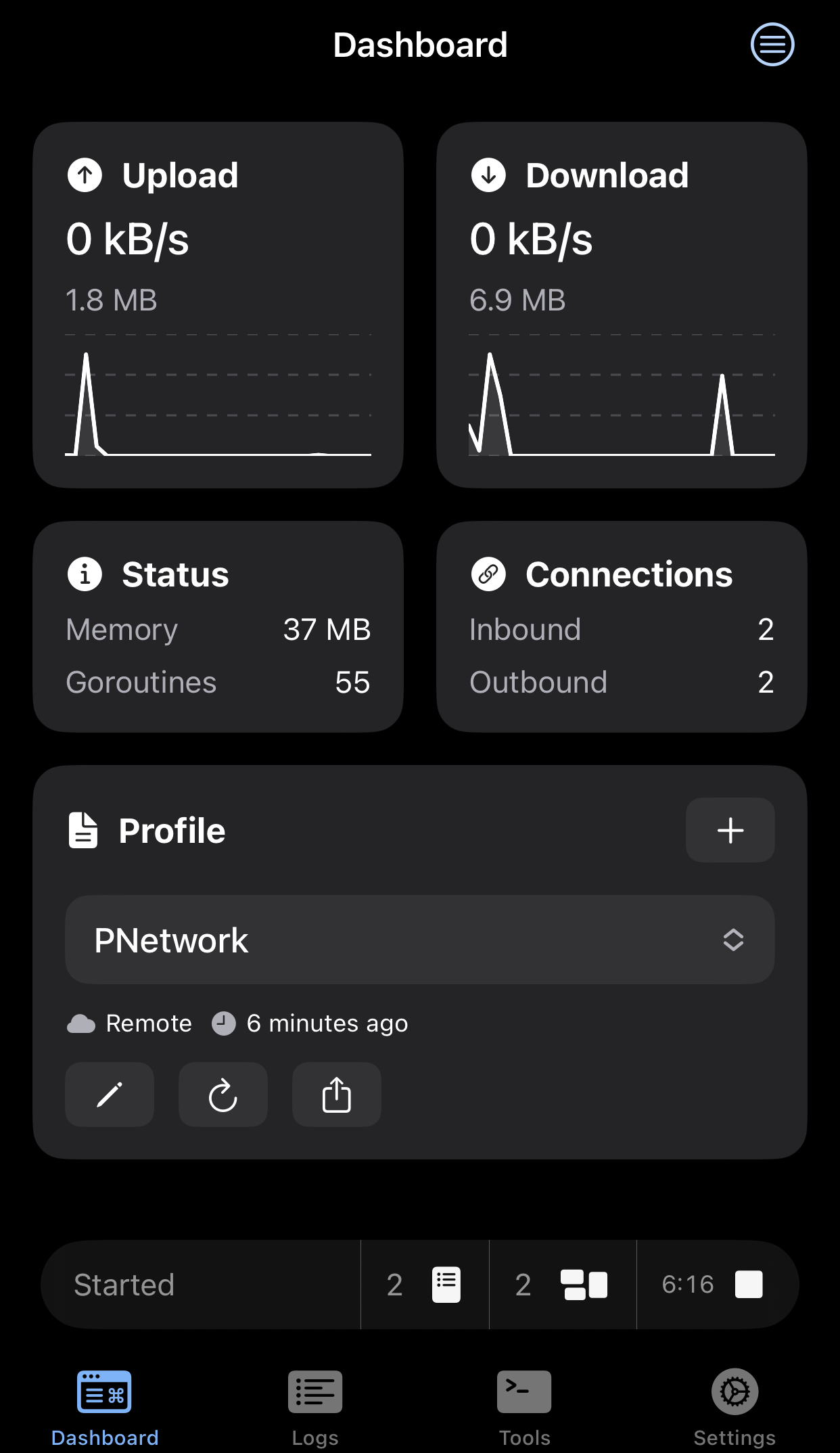
On the Profile card tap +, choose Create Manually, fill in a name, type Remote and your subscription link as the URL, then tap Create.
9iPhone & iPad: connect
Tap the start button on the Dashboard. The connected view shows live traffic; the Groups tab (under the top-right menu) lists your node with per-protocol latency.
Trouble connecting? See the shared troubleshooting checklist or email [email protected].